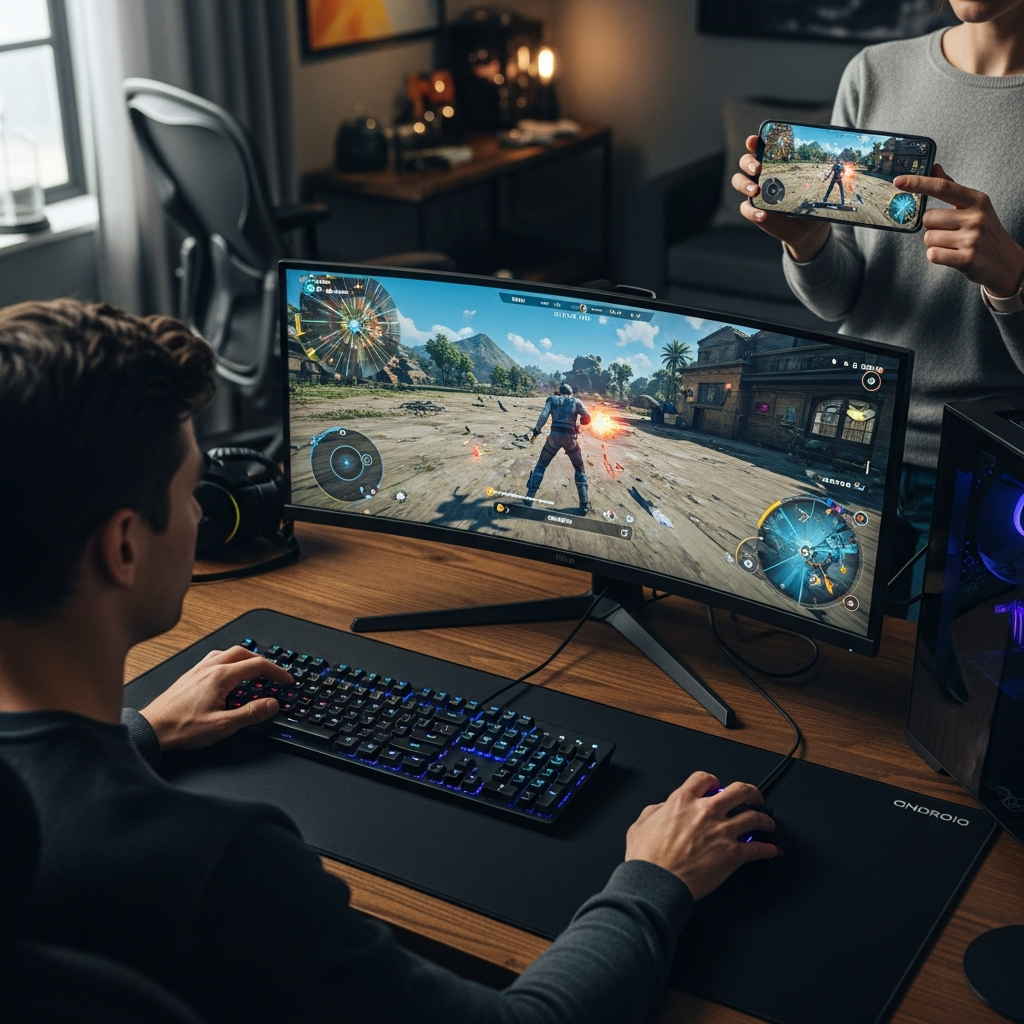
There is a distinct, universal frustration in modern mobile gaming: hitting your stride during a commute, only to be forced to abandon your progress the moment you walk through your front door. Staring at a six-inch screen while a high-powered Windows rig sits dormant on your desk is a compromise we have accepted for far too long. Google has finally decided to bridge that gap.
With the latest overhaul to Google Play Games on PC, the tech giant has quietly rolled out four massive upgrades that transform your Windows desktop into a seamless extension of your smartphone. The days of fragmented progress, clunky emulators, and compromised graphics are over. If you are ready to elevate your mobile titles to a premium desktop experience, here is exactly how to leverage Google’s new ecosystem to pick up right where you left off.
The Architecture of the Upgrade
Before executing the setup, it is crucial to understand what Google has actually placed on the table. The latest iteration of Google Play Games for PC is not merely a porting tool; it is a full-scale ecosystem integration. The four pillars of this update include frictionless cross-device syncing, native 4K resolution support, comprehensive console controller mapping, and a vastly expanded, easily searchable library of high-tier titles.
The crown jewel here is the continuity. Google has engineered a handoff so precise that you can close a game on your Pixel or Galaxy, boot up your Windows machine, and instantly spawn in the exact same location. No manual save transfers. No third-party cloud workarounds. Just uninterrupted gameplay.
How to Orchestrate the Seamless Sync
To achieve this cross-platform nirvana, you need to establish a flawless connection between your hardware. Here is how to configure the handoff.
First, abandon the third-party emulators cluttering your hard drive. Navigate to the official Google Play Games on PC portal and download the native Windows client. During the installation, you will be prompted to log in. This is the critical juncture: you must authenticate using the exact Google account tied to your primary mobile device. This unified login is the engine powering the cross-platform sync.
Once inside the desktop client, ensure your cloud saves are actively communicating. Open the settings menu via your profile icon in the top right corner. Verify that your Play Games profile is set to automatically sign into supported games. On your mobile device, double-check that Google Play Games is granted permission to sync your progress to the cloud. When you launch a supported title on your PC, the client will instantly fetch your mobile save state, dropping you directly into the action without a single lost frame.
Elevating the Visuals: Activating 4K Supremacy
Playing a mobile game on a 27-inch monitor used to mean enduring stretched, pixelated textures. Google’s second major upgrade eradicates this issue by introducing native 4K resolution support for optimized titles. But it does not happen automatically—you need to command the hardware to push those pixels.
While in-game on your PC, press the Shift and Tab keys simultaneously to summon the Google Play Games overlay. Navigate to the resolution settings. If the developer has optimized the title for the new update, you will see an option to force the resolution up to 4K. Select the highest available tier that matches your monitor. The client will immediately render sharper textures, superior anti-aliasing, and a visual fidelity that rivals native PC indie titles.
Ditching the Touchscreen: Mastering Controller Support
Swiping on glass is a necessity on the subway; it is an insult at a desk. The third major upgrade introduces robust, native support for premium console peripherals, including the PlayStation DualSense and Xbox Wireless controllers.
To configure your controller, pair it to your Windows PC via Bluetooth or a direct USB-C connection. Launch the Google Play Games PC client. The software now automatically detects connected, standardized gamepads. Boot up an action-heavy title like Genshin Impact or Asphalt 9: Legends. Press Shift + Tab to open the overlay, and select the ‘Controls’ menu. Here, you can verify the mapping. Google has intuitively translated touchscreen gestures and mobile UI inputs into standard console button layouts, instantly transforming a mobile distraction into a fully-fledged desktop gaming experience.
Navigating the Expanded Arsenal
The final upgrade addresses the historical lack of discoverability. Google has entirely revamped the desktop search function, allowing you to filter through an exponentially growing library of PC-optimized Android titles. Use the new search bar to sort by genre, controller support, or graphical fidelity.
By taking a few minutes to configure this ecosystem, you are no longer tethered to battery anxiety or ergonomic strain. Google has finally blurred the line between mobile and desktop gaming. Set up the client, sync your saves, connect your controller, and reclaim your gameplay.
Original Reporting: lifehacker.com